Archive

Posts Tagged ‘WPF’

WPF NotifyIcon 1.0.1 – Minor Improvements, Major Tutorial

May 15th, 2009

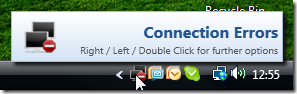
I just posted an upgrade to my WPF NotifyIcon, which adds some minor improvements to the control. The most important one is probably the simplified data binding support for context menus (thanks to Nic Pillinger for the hint), but I also managed to add some polish in a few other areas.


image


Apart from the updated control itself, I completely revamped the sample project. It’s no longer just a showcase but contains various standalone samples which cover all aspects of the control. And last but not least, I published a complementary tutorial on the CodeProject. One could say I was quite busy ;)


Further information and download on the project page:
http://www.hardcodet.net/projects/wpf-notifyicon

Using Attached Events to Trigger Animations in WPF

May 8th, 2009

This is a pattern I applied when implementing the WPF NotifyIcon component in order to provide animation support for popups, tooltips, and balloon messages. The problem I had to solve was the loose coupling between the NotifyIcon and displayed controls:


image

Accordingly, I didn’t know anything about these controls at runtime. Nonetheless, I wanted to provide a communication channel to inform that UIElement that it is being displayed. And I wanted to do it declaratively.

Attached Events to the Rescue

Enter attached events. Just like the better known attached properties, they can be declared in a static class and attached to arbitrary dependency objects. Accordingly, a control X does not need to declare an event itself in order to raise it.

If you are working with Expression Blend, chances are high that you are already using attached events quite often. As an example, the Mouse.MouseDown attached event that lets you trigger an animation if the user clicks on an arbitrary control. And nothing stops you from defining your own custom events :-)

Creating a Sample Application

Let’s create a simple sample. The scenario is the following:

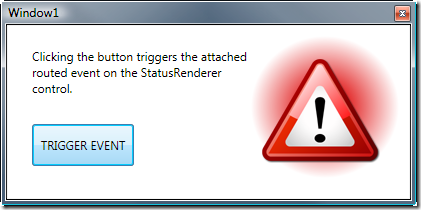
  • Sometimes, some kind of critical event occurs (simulated through a button click).
  • Every time this happens, we want a “status control” to show an alarm.

We will implement this status control purely in XAML – an attached event will trigger an animation that displays a warning sign:

image


Read more…

NetDrives 1.0 Released

May 6th, 2009

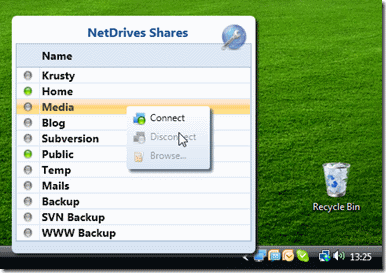
NetDrivesI’ve just uploaded installer and source code of NetDrives 1.0. This is my first tool that does not only address fellow developers, but a wider audience :)

In a few words, NetDrives is an open source utility that helps you manage your network shares and mapped network drives. Unlike Windows, it can reconnect to secured shares during startup and provides you quick access to your configured shares.


quickaccess


More information, screenshots, and downloads at the project page:

http://www.hardcodet.net/netdrives

WPF NotifyIcon Released

May 4th, 2009

I’m happy to announce the public release of my WPF NotifyIcon control :-)

This is an implementation of a NotifyIcon (aka system tray icon or taskbar icon) for the WPF platform. It does not just rely on the existing Windows Forms component, but is a purely independent control which leverages several features of the WPF framework in order to display rich ToolTips, Popups, context menus, and balloon messages.


image


I’m planning on doing an introductory article on CodeProject (well, somewhere along the way…) but you’ll probably get along just fine – the control comes with a sample application that shows off most of the control’s features.


Further information and download on the project page:
http://www.hardcodet.net/projects/wpf-notifyicon


kick it on DotNetKicks.com

Tags: ,

Declaring Custom WPF Commands via MarkupExtensions

April 25th, 2009

And yet another markup extension that hopefully makes things a little easier for you. Basically, it’s the same pattern that the good doctor described here for value converters, but with custom commands in mind.

Without Extension

Basically, this extension makes your commands immediately available without having to declare them. One "traditional" way to declare a command is directly in XAML:

<Window.Resources>

  <cmd:HelloWorldCommand x:Key="SayHello" />

</Window.Resources>


…and then apply it like this:

<Button Command="{StaticResource SayHello}" />


Using the Markup Extension

The declaration part above can become somewhat tedious, especially if you have quite a few commands (e.g. because you are using a ribbon with lots of buttons on it). Thanks to using a markup extension, you can skip the declaration part altogether and just declare your command.

<Button Command="{cmd:HelloWorldCommand}" />


Implementation and Sample


/// <summary>
/// Basic implementation of the <see cref="ICommand"/>
/// interface, which is also accessible as a markup
/// extension.
/// </summary>
public abstract class CommandExtension<T> : MarkupExtension, ICommand
    where T:class, ICommand, new()
{
  /// <summary>
  /// A singleton instance.
  /// </summary>
  private static T command;

  /// <summary>
  /// Gets a shared command instance.
  /// </summary>
  public override object ProvideValue(IServiceProvider serviceProvider)
  {
    if (command == null) command = new T();
    return command;
  }

  /// <summary>
  /// Fires when changes occur that affect whether
  /// or not the command should execute.
  /// </summary>
  public event EventHandler CanExecuteChanged
  {
    add { CommandManager.RequerySuggested += value; }
    remove { CommandManager.RequerySuggested -= value; }
  }

  /// <summary>
  /// Defines the method to be called when the command is invoked.
  /// </summary>
  /// <param name="parameter">Data used by the command.
  /// If the command does not require data to be passed,
  /// this object can be set to null.
  /// </param>
  public abstract void Execute(object parameter);

  /// <summary>
  /// Defines the method that determines whether the command
  /// can execute in its current state.
  /// </summary>
  /// <returns>
  /// This default implementation always returns true.
  /// </returns>
  /// <param name="parameter">Data used by the command.  
  /// If the command does not require data to be passed,
  /// this object can be set to null.
  /// </param>
  public virtual bool CanExecute(object parameter)
  {
    return true;
  }
}


…and here’s a sample implementation:

public class HelloWorldCommand : CommandExtension<HelloWorldCommand>
{
  public override void Execute(object parameter)
  {
    MessageBox.Show("Hello world.");
  }
}


Of course, nothing prevents you from pimping the base class a little to your needs :-)

Tags: ,

WPF Ribbon: RibbonCommands Can Cause Memory Leaks

April 15th, 2009

I stumbled over an issue when dealing with Microsoft’s WPF ribbon today. Apparently, the control that heavily relies on RibbonCommands rather than arbitrary ICommand instances may cause severe memory leaks. Have a look at this simple Window:


<Window ...>
  <Grid>
    <Grid.Resources>
      <r:RibbonCommand
        x:Key="MyCommand"
        Executed="OnRibbonClicked"
        LabelTitle="Click Me" />
    </Grid.Resources>

    <!-- a ribbon that only displays a command in the quick access toolbar -->
    <r:Ribbon>
      <r:Ribbon.QuickAccessToolBar>
        <r:RibbonQuickAccessToolBar>
          <r:RibbonButton
            Command="{StaticResource MyCommand}"
            r:RibbonQuickAccessToolBar.Placement="InToolBar" />
        </r:RibbonQuickAccessToolBar>
      </r:Ribbon.QuickAccessToolBar>
    </r:Ribbon>
  </Grid>
</Window>


…and here’s the event listener that was declared for the RibbonCommand:

private void OnRibbonClicked(object sender, ExecutedRoutedEventArgs e)
{
  MessageBox.Show("Ribbon command executing.");
}


Once opened and closed, this window will not be garbage collected until the application shuts down. The reason is the OnRibbonClicked event handler that doesn’t get deregistered.

There are signs that Microsoft will dump RibbonCommand completely once the ribbon goes live. However: This probably won’t happen too fast, so you will have to solve the issue on your own. On the bright side: It forces a cleaner design on you.

I prefer custom commands anyway, so the natural way to go was to simply implement my own class that derives from RibbonCommand:


///<summary>
/// Base class for custom <see cref="RibbonCommand"/>
/// implementations.
///</summary>
public abstract class RibbonCommandBase : RibbonCommand
{
  /// <summary>
  /// Creates the command and registers weak event listeners.
  /// </summary>
  protected RibbonCommandBase()
  {
    Executed += OnExecute;
    CanExecute += OnCanExecute;
  }

  /// <summary>
  /// Determines whether the command can be executed or not.
  /// The default implementation always allows that.
  /// </summary>
  protected virtual void OnCanExecute(object sender, CanExecuteRoutedEventArgs e)
  {
    e.CanExecute = true;
  }

  /// <summary>
  /// Command implementation - executes command logic.
  /// </summary>
  protected abstract void OnExecute(object sender, ExecutedRoutedEventArgs e);
}


The noteworthy thing here is that this abstract base class registers event listeners for its own events - one virtual, one abstract. Accordingly, a deriving command implementation only has to provide its own OnExecute and OnCanExecute (optional) methods to get going:


public class MessageCommand : RibbonCommandBase
{
  protected override void OnExecute(object sender, ExecutedRoutedEventArgs e)
  {
    MessageBox.Show("Ribbon command executing.");
  }
}


The last thing to correct is the command declaration in XAML - rather than declaring a RibbonCommand with a code-behind event listener, you declare your custom command (MessageCommand in the sample below). As you can see, there is no longer a listener for the Executed event - the command takes care of this on its own. Accordingly, this command can be declared in a resource dictionary without a code-behind file.

<!-- Custom command - can be declared in a resource dictionary -->
<cmd:MessageCommand x:Key="MyCommand"
                    LabelTitle="Click Me"
                    SmallImageSource="About.png"
/>


Sample Project

The attached sample project shows the two variants and the missing garbage collection of the standard ribbon commands.

I wasn’t sure about licensing restrictions, therefore I did not include the WPF ribbon assembly in the downloadable sample - you’ll have to add the reference yourself before compiling. Sorry for the inconvenience :/

Download: ribbon-commands.zip


 image


kick it on DotNetKicks.com

Tags: ,