Archive

Archive for the ‘WPF’ Category

Microsoft WPF DataGrid vs. Commercial Solution: 1:0

December 30th, 2008

I’ve never been really happy with the commercial data grid I’ve been using so far - the whole API felt somewhat “winformish”, and required my to write a lot of XAML or even code for even the most basic tasks.

Today, I needed a simple grid on one of my current projects, and immediately got annoyed by the same issues that bug me every time. With the difference that this time, I had a new alternative to look at - Microsoft’s Data Grid that went V1 this October.

Well: This is an amazing control. It’s not amazingly powerful, it doesn’t have amazing animations, amazing views or anything like that. There is just one thing: It gets the job done.

Here’s my top 3 in comparison to my commercial product:

1: Data Binding

Finally I have data binding the way I always thought it should be. No more dealing with the internal data representation of the grid, and 2-way-data binding to selected items (not records or rows) out of the box. I didn’t even have to look up the API - it’s just as I expected it to be. Loving it:


<dg:DataGrid
  x:Name="platforms"
  ItemsSource="{Binding Path=Track.Platforms, ElementName=me}"
  SelectedItem="{Binding Path=ActivePlatform, ElementName=me}">

<!-- column definitions -->

</dg:DataGrid>


2: Liquid (Star-Sized) Columns

To my great surprise, I can easily star-size columns to take the full available horizontal space of the grid. This is a feature I need as good as every time I use a grid. With my commercial product, I was forced to write a whole layout template in order to get there. Not anymore:


<dg:DataGrid.Columns>
  <!-- fixed size column -->
  <dg:DataGridTextColumn
    Header="Name"
    Width="60"
    Binding="{Binding Path=ItemName}" />
  <!-- takes 2/3 of the remaining space -->
  <dg:DataGridTextColumn
    Header="Description"
    Width="2*"
    Binding="{Binding Path=Description}" />
  <!-- takes 1/3 of the remaining space -->
  <dg:DataGridTextColumn
    Header="Position"
    Width="*"
    Binding="{Binding Path=StartPosition}" />
</dg:DataGrid.Columns>


3: Styling

I really do like some of the carefully crafted themes of my commercial grid. But on the other hand, customizing it was a major pain, so styling was one of my main concerns. However, the MS grid is amazingly flexible and easy to use for a v1.0 solution.

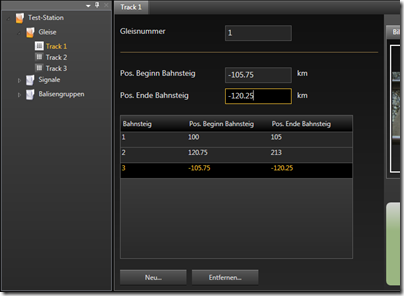
In the end, I’m happier with my custom-styled result than the predefined theme of my commercial grid - simply because the custom style blends in perfectly with the rest of the UI:

styledgrid

checklist


Conclusion

I’m pretty sure that the commercial - and definitely more powerful - solutions have their rightful place on the market, but Microsoft’s grid really fills a gap for me here - especially because of the API that just keeps things simple.

I can’t help but think that the vendors that were the first ones on the market may be last in the long run. At least the API of the grid I used so far just doesn’t cut it for me. We all had to get (are still getting) acquainted to “thinking in WPF” and some of the “mature” solutions just give me the impression that their basic concepts have “Windows Forms” written all over them. And with regards to compatibility, it might get pretty hard to get rid of that. That is, however, just my 0.02$.

Go get it @ CodePlex: http://www.codeplex.com/wpf

Tags: ,

Organizing Heterogeneous Data on a WPF TreeView

December 11th, 2008

Most WPF TreeView samples you see on the web are somewhat simplistic: While they may provide heterogeneous data, usually all childs of a given node are of the same type:

simpletree

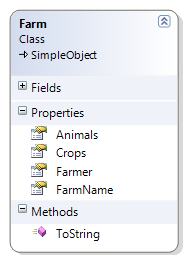
However, more often than not, you’re running into more complex scenarios where additional structuring is necessary. Image your Farm class looks like this:

image

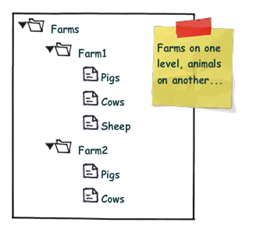
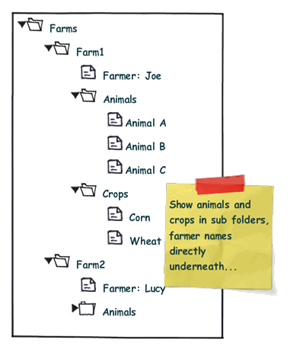
Accordingly, you might want to display that information according to the sketch below:

complextree

Note the difference: We want to organize the Animals and Crops collections within individual sub folders, while the "Farmer" node is a direct child of the "Farm" root node. From the control’s point of view, this means that the "Folder" nodes and the "Farmer" node are siblings.

Now, one solution to that very problem are ViewModel wrapper classes that optimize the business logic for your specific UI logic. This route does work very well for quite a few scenarios. However, sometimes, you just want to have a quick solution. I’ll try to provide one here…

My solution to that very problem requires the following ingredients:

  • A MultiBinding that allows you to combine different bindings.
  • A converter that helps us organizing the different bound collections into sub folders, where necessary.
  • And of course: Data templates that provide a visual representation of your bound data.


Let’s start with the bindings, which are declared within a HiearchicalDataTemplate. You can use a MultiBinding to retrieve all necessary data of a given Farm instance:


<HierarchicalDataTemplate DataType="{x:Type local:Farm}">

  <!-- bind the different data sources -->
  <HierarchicalDataTemplate.ItemsSource>
    <MultiBinding>
      <Binding Path="Farmer" />
      <Binding Path="Animals" />
      <Binding Path="Crops" />
    </MultiBinding>
  </HierarchicalDataTemplate.ItemsSource>

  <TextBlock Text="{Binding Path=FarmName}" />

</HierarchicalDataTemplate>


A MultiBinding always needs a converter of type IMultiValueConverter. Our converter has to provide the following functionality:

  • Allow binding of simple objects (Farmer), or collections (Animals, Crops).
  • Where necessary, put a bound child item or collection into a virtual container object that can serve as a "folder" when it comes to rendering.
  • Provide means to name (or even identify) a folder in order to simplify styling.
  • Render specific child items directly under the parent node (no subfolder). 
  • Return everything as a an object that can be bound to the TreeView.ItemsSource property.


I wrote a simple converter that performs these tasks. The initial declaration looks like this:

 
<MultiBinding Converter="{StaticResource folderConverter}">
  <Binding Path="Farmer" />
  <Binding Path="Animals" />
  <Binding Path="Crops" />
</MultiBinding>
 
…and it produces the following output:

image


Obviously, the data is being parsed parsed and assigned to the "Farm" nodes, but we’re still lacking the desired structure (sub folders for animals and plants). However, this can easily be done by setting the ConverterParameter property:


<MultiBinding Converter="{StaticResource folderConverter}"
              ConverterParameter=", Animals, Cultivated Plants">
  <Binding Path="Farmer" />
  <Binding Path="Animals" />
  <Binding Path="Crops" />
</MultiBinding>
 

The converter parameter allows you to define folders for any of the items that are bound within the MultiBinding, while an empty string inserts a bound item directly under the root item. The converter parameter above produces the following output:

 image


The tree now renders the farmers and four FolderItem instances. FolderItem is a very simple helper class that is used by the converter to store the bound Animals and Crops collections. It provides just two properties:

  • Name (the string that was defined through the converter parameter)
  • Items (the folder’s contents)

Currently, the tree does not know yet how to render a FolderItem class, which is why there’s just the name displayed. What’s missing here is an additional data template for FolderItem:


<!-- data template for FolderItem instances -->
<HierarchicalDataTemplate DataType="{x:Type vm:FolderItem}"
                          ItemsSource="{Binding Path=Items}">

  <TextBlock Text="{Binding Path=Name}" />

</HierarchicalDataTemplate>


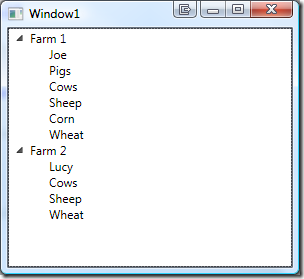
This finally produces our desired output:

image


Simply delegating data organization to the SimpleFolderConverter allows us to individually structure heterogeneous data for our TreeView control with a very simplistic approach. Below is the complete XAML for the sample:


<Window
  x:Class="Hardcodet.Farms.Window1"
  xmlns="http://schemas.microsoft.com/winfx/2006/xaml/presentation"
  xmlns:x="http://schemas.microsoft.com/winfx/2006/xaml"
  xmlns:vm="clr-namespace:Hardcodet.Farms.ViewModel"
  xmlns:local="clr-namespace:Hardcodet.Farms.Model"
  Title="Window1"
  Height="300"
  Width="300">

  <Window.Resources>
    <vm:SimpleFolderConverter x:Key="folderConverter" />

    <!-- data template for Farm instances -->
    <HierarchicalDataTemplate DataType="{x:Type local:Farm}">

      <!-- bind the different data sources -->
      <HierarchicalDataTemplate.ItemsSource>
        <MultiBinding Converter="{StaticResource folderConverter}"
                      ConverterParameter=", Animals, Cultivated Plants">
          <Binding Path="Farmer" />
          <Binding Path="Animals" />
          <Binding Path="Crops" />
        </MultiBinding>
      </HierarchicalDataTemplate.ItemsSource>

      <TextBlock Text="{Binding Path=FarmName}" />
    </HierarchicalDataTemplate>

    <!-- data template for FolderItem instances -->
    <HierarchicalDataTemplate DataType="{x:Type vm:FolderItem}"
                              ItemsSource="{Binding Path=Items}">
      <TextBlock Text="{Binding Path=Name}" />
    </HierarchicalDataTemplate>

  </Window.Resources>

  <!-- the treeview control -->
  <TreeView x:Name="farmsTree" />

</Window>


Of course, you can easily style any of the data templates to your liking. You find the complete sample under the link below. Enjoy :)

Download Sample Project (VS2008): farmtree.zip

Tags: ,

A Covariant ObservableCollection for .NET 3.x

November 28th, 2008

When starting with generics, I was somewhat suprised that something like this didn’t work:


public interface IAnimal
{
}

public class Pig : IAnimal
{
}

public class AnimalFarm
{
  private ObservableCollection<Pig> pigs;

  public IEnumerable<IAnimal> Animals
  {
    get { return pigs; } //DOES NOT COMPILE
  }
}


The problem is that generics aren’t covariant, which is sometimes a bit of a problem when working with interfaces. However, while we’re waiting for C# 4.0, there is a poor man’s solution to covariance - the idea is to just expose the required IEnumerable<IAnimal> interface explicitly for the interface. And of course, there’s a generic solution to that problem:


/// <summary>
/// An implementation of <see cref="ObservableCollection{T}"/> that provides
/// an <see cref="IEnumerable{X}"/> interface for a super type of
/// <typeparamref name="T"/>.
/// </summary>
/// <typeparam name="T">The type of items to be stored in the collection.</typeparam>
/// <typeparam name="X">A super type of <typeparamref name="X"/>, for which this
/// collection provides an <see cref="IEnumerable{X}"/> interface, thus providing
/// covariance.</typeparam>
public class HybridObservableCollection<T, X> : ObservableCollection<T>,
                                                IEnumerable<X> where T : X
{

  /// <summary>
  /// Provides enumeration over type <see cref="X"/>.
  /// </summary>
  /// <returns>A <see cref="IEnumerator{X}"/>> that can be used to iterate
  /// through the collection.</returns>
  IEnumerator<X> IEnumerable<X>.GetEnumerator()
  {
    foreach (T t in this)
    {
      yield return t;
    }
  }

}


Note the type constraint: The second type parameter (X) must be convertible to the first one (T), which ensures that you can’t break the collection.

And as a result, we can return the collection as both IEnumerable<Pig> or IEnumerable<IAnimal>:

public class AnimalFarm
{
  //the collection provides both IEnumerable<Pig>, IEnumerable<IAnimal>
  private HybridObservableCollection<Pig, IAnimal> pigs;

  public IEnumerable<IAnimal> Animals
  {
    get { return pigs; } //WORKS
  }

  public IEnumerable<Pig> Pigs
  {
    get { return pigs; } //WORKS TOO
  }
}


Of course, rather than just IEnumerable<IAnimal>, you could easily expose IList<IAnimal> that way, but you would risk runtime exceptions if somebody tried to inject another IAnimal implementation into the base class that is not an instance of type Pig. However, in a safe environment, this might be well feasible if it lets you expose your collections as lists and still stick to interfaces.

Tags:

WPF TabControl transition effects with Transitionals

May 13th, 2008

Transitionals is a WPF framework that allows you to integrate nice transition effects into your WPF application with very little effort. It’s gone live a few days ago on CodePlex and definitely worth checking out:

http://www.codeplex.com/transitionals


I’ve downloaded the library today in order to incorporate a little eye candy into a prototype I’m doing. However, what I wanted to do was adding transition effects on a tab control, which is currently not supported out of the box by the framework:

Currently Transitionals ships with only two controls out of the box [...]. Other controls, like a Tab control for example, could also be created. We encourage the community to come up with other common navigation and presentation scenarios that can leverage transitions.

This sounded like a lot of work, but luckily, it wasn’t: TabControl provides a ContentTemplate property which can be bound to a data template. This is were I put a TransitionElement control and bound it to the current content of the tab control:

<DataTemplate x:Key="TabTemplate">
  <t:TransitionElement Content="{Binding}">
    <!-- some more stuff -->
  </t:TransitionElement>
</DataTemplate>

<!-- tab control with content template -->
<TabControl ContentTemplate="{StaticResource TabTemplate}" />


These bindings take care of everything - a tab switch changes the content of the TransitionElement, which triggers a transition animation. All that was left to do was configuring a transition effect and adding some content to the tab control. Here’s the complete listing that uses a 3D rotation effect:


<Grid>
  <Grid.Resources>

    <!-- the data template binds the content to a transition element -->
    <DataTemplate x:Key="TabTemplate">
      <t:TransitionElement Content="{Binding}">
        <!-- rotate tab contents -->
        <t:TransitionElement.Transition>
          <trans:RotateTransition Duration="0:0:1.500"
                                  Angle="90" />
        </t:TransitionElement.Transition>
      </t:TransitionElement>
    </DataTemplate>

  </Grid.Resources>

  <TabControl ContentTemplate="{StaticResource TabTemplate}">

    <TabItem Header="First">
      <!-- some content -->
    </TabItem>

    <TabItem Header="Second">
     <!-- some content -->
    </TabItem>

  </TabControl>

</Grid>


My sample contains two tabs which both display the same image. Accordingly, the code snippet above produces the following 3D effect when switching tabs:

transition

Tags: ,

A base class for custom WPF binding markup extensions

April 16th, 2008

Already tried to extend the Binding or BindingBase classes in order to write your own custom bindings? And failed because BindingBase.ProvideValue is sealed? Me too…

The result is a MarkupExtension that works around the issue that you cannot properly extend the Binding class. Basically, it allows you to write binding expressions with the usual syntax without having to worry about the underlying plumbing. Here’s a sample binding that adds an additional LookupKey property:

<TextBox Name="txtZipCode"
         Text="{local:LookupExtension Path=ZipCode,
                                      Mode=TwoWay,
                                      UpdateSourceTrigger=PropertyChanged,
                                      LookupKey=F5}"
/>


Decorating the Binding class

As extending the Binding class did not work, I tried a different approach:

  • Create a class that extends MarkupExtension rather than BindingBase. This class provides all the properties that are needed for a binding expression (Source, Path, Converter, …).
  • Based on defined binding properties, the extension class internally creates a regular Binding and associates it with the targeted dependency object.

I wanted it to look somehow like this (dummy code!):

public class MyCustomExtension : MarkupExtension
{
  public override object ProvideValue(IServiceProvider provider)
  {
    //we only use this extension on textboxes
    TextBox tb = GetTextBoxFromProvider(provider);

    //create a binding and associate it with the text box
    Binding binding = CreateBinding(this.Source, this.Path);
    tb.SetBinding(TextBox.TextProperty, binding);

    //return a valid value
    return ...;
  }
}

And guess what - that worked :)

The result is an abstract base class that provides pretty much everything you need to create your custom binding classes. The BindingDecoratorBase provides properties for all kinds of binding expressions (Source, Path, Converter etc.) and handles binding creation and association with the targeted dependency object for you:

 image

Basically, the class maintains its own binding class and just forwards the binding statements. For example, here’s the declaration of the Path property:

[DefaultValue(null)]
public PropertyPath Path
{
  get { return binding.Path; }
  set { binding.Path = value; }
}
 

Custom Binding Sample

Here’s a simple sample: Let’s say we have a TextBox that displays the ZipCode property of a bound item. The XAML for this bound control looks like this:

<TextBox Name="txtZipCode"
         Text="{Binding Path=ZipCode}"
/>

However, we want to interfere with the binding in order to add some additional value. For this example, we’d like to register the bound control with some kind of handler class. We could also do this with an attached property, but this is more fun ;)

First, I created a custom extension called LookupExtension that derives from BindingDecoratorBase. BindingDecoratorBase provides all binding properties out of the box, so the binding expression itself (Path=ZipCode) remains intact. The only thing I had to change in XAML was the extension name and add the custom property for my extension (LookupKey):

<TextBox Name="txtZipCode"
         Text="{local:LookupExtension Path=ZipCode,
                                      LookupKey=F5}"
/>

As LookupExtension derives from BindingDecoratorBase, it is ensured that in the end, the text box will be bound to the ZipCode property just like with the original regular binding expression.

Below is a first implementation which does not yet add any additional value. Therefore, this extension would behave exactly like the original binding - the ZipCode property of the bound data item is displayed, and updating the TextBox changes the bound property value:

public class LookupExtension : BindingDecoratorBase
{
  //A property that can be set in XAML
  public string LookupKey { get; set; }

  public override object ProvideValue(IServiceProvider provider)
  {
    //delegate binding creation etc. to the base class
    return base.ProvideValue(provider);
  }
}

So what’s left is adding some custom code to the extension. Below is the complete sample. Basically, the bound control (the text box of the sample) is determined by invoking TryGetTargetItems and then registered with an InputHandler. That’s it:

public class LookupExtension : BindingDecoratorBase
{
  //A property that can be set in XAML
  public string LookupKey { get; set; }

  public override object ProvideValue(IServiceProvider provider)
  {
    //delegate binding creation etc. to the base class
    object val = base.ProvideValue(provider);

    //try to get bound items for our custom work
    DependencyObject targetObject;
    DependencyProperty targetProperty;
    bool status = TryGetTargetItems(provider, out targetObject,
                                              out targetProperty);

    if (status)
    {
      //associate an input listener with the control
      InputHandler.RegisterHandler(targetObject, LookupKey);
    }

    return val;
  }
}

Note the status flag in the snippet above! ProvideValue is also invoked at design time (within Visual Studio). In this case, the provider parameter is null, so be careful to validate your parameters or you’ll end up with a broken designer.


Problem: Attribute syntax with resources

During the implementation of the sample, I came across an annoying issue: You cannot nest static or dynamic resources within a custom markup extension due to a framework bug. This means that if you wanted to set the Source property explicitly, you could not write it like this:

<TextBox Name="txtZipCode"
         Text="{local:LookupExtension Source={StaticResource MyAddress}
                                      Path=ZipCode,
                                      LookupKey=F5}"
/>

The above snippet does not compile due to a bug I described here. As a result, you have to fall back to property element syntax if you need to explicitly setting the Source property or other resources (e.g. Converter):

<TextBox Name="txtZipCode">
  <TextBox.Text>
    <local:LookupExtension Source="{StaticResource MyAddress}"
                           Path="ZipCode"
                           LookupKey="F5" />
  </TextBox.Text>
</TextBox>


Source Code / Sample

I’ve assembled a simple project that contains the BindingDecoratorBase class and the LookupExtension I used as a sample (VS 2008 project).

You can download it here: custom-bindings.zip

Markup Extension Sample


This article was kindly donated for:

Hosting.com’s dedicated server hosting provides reliable uptime for your business’s website hosting; while Inventory management software and exchange server hosting can improve internal efficiency.

Tags: ,

Custom MarkupExtension && Nested Extensions == Bug

April 16th, 2008

I’m currently working on a custom markup extension and came over a pretty nasty issue. Here’s the working XAML of a dummy extension:

<TextBox Name="txtCity"
   Foreground="{local:ColorExtension Color=Red}"
/>


This works like a charm - the fore color is set to red as expected. However - as soon as I try to set the Color property through a resource, I’m getting a compiler error:

<TextBox Name="txtCity"
   Foreground="{local:ColorExtension Color={StaticResource ErrorBrush}}"
/>

Here’s the error message: Unknown property ‘Color’ for type ‘MS.Internal.Markup.MarkupExtensionParser+UnknownMarkupExtension’ encountered while parsing a Markup Extension.


Well, the property does exist. Fortunately, Beatriz Costa referred to this bug in her blog - in October 2006. I’m working here with VS2008, targeting .NET 3.5, so I can honestly say: I’m not amused. Fortunately, there’s a workaround: Skip attribute syntax and fall back to property element syntax:

<TextBox Name="txtCity">
  <TextBox.Foreground>
    <local:ColorExtension Color="{StaticResource ErrorBrush}" />
  </TextBox.Foreground>
</TextBox>


Another solution would be to assign a constructor to the ColorExtension markup extension that takes the Brush as a parameter. In that case, you could write XAML like this:

<TextBox Name="txtCity"
   Foreground="{local:ColorExtension {StaticResource ErrorBrush}}"
/>

The compiler accepts a StaticResource as a constructor parameter, but it appears it breaks the VS designer. So for now, it’s property element syntax.


Some other observations: Some extensions can be nested, others can’t. Using DynamicResource also fails to compile, while using a RelativeSource statement or something like {x:Null} works without complaints.

If somebody can shed some light on this, I’ll be happy to update this post accordingly :)

Tags: ,